Getting Started
Welcome to Equalize! Setting up your first budget can feel like work, but it brings clarity and control to your finances.
1. Create Your Budget
Choose a name and a currency for your budget. Equalize lets you create multiple budgets, each with its own default currency. We recommend creating one budget for your personal financial life, and if you run a small business, creating a separate budget for it if you want. Ideally, you should not mix finances.
When you create a new budget, Equalize suggests a list of default categories, and you can choose which ones to keep in order to create your budget. You can add, edit, and remove categories at any time.
2. Add Your Current Accounts
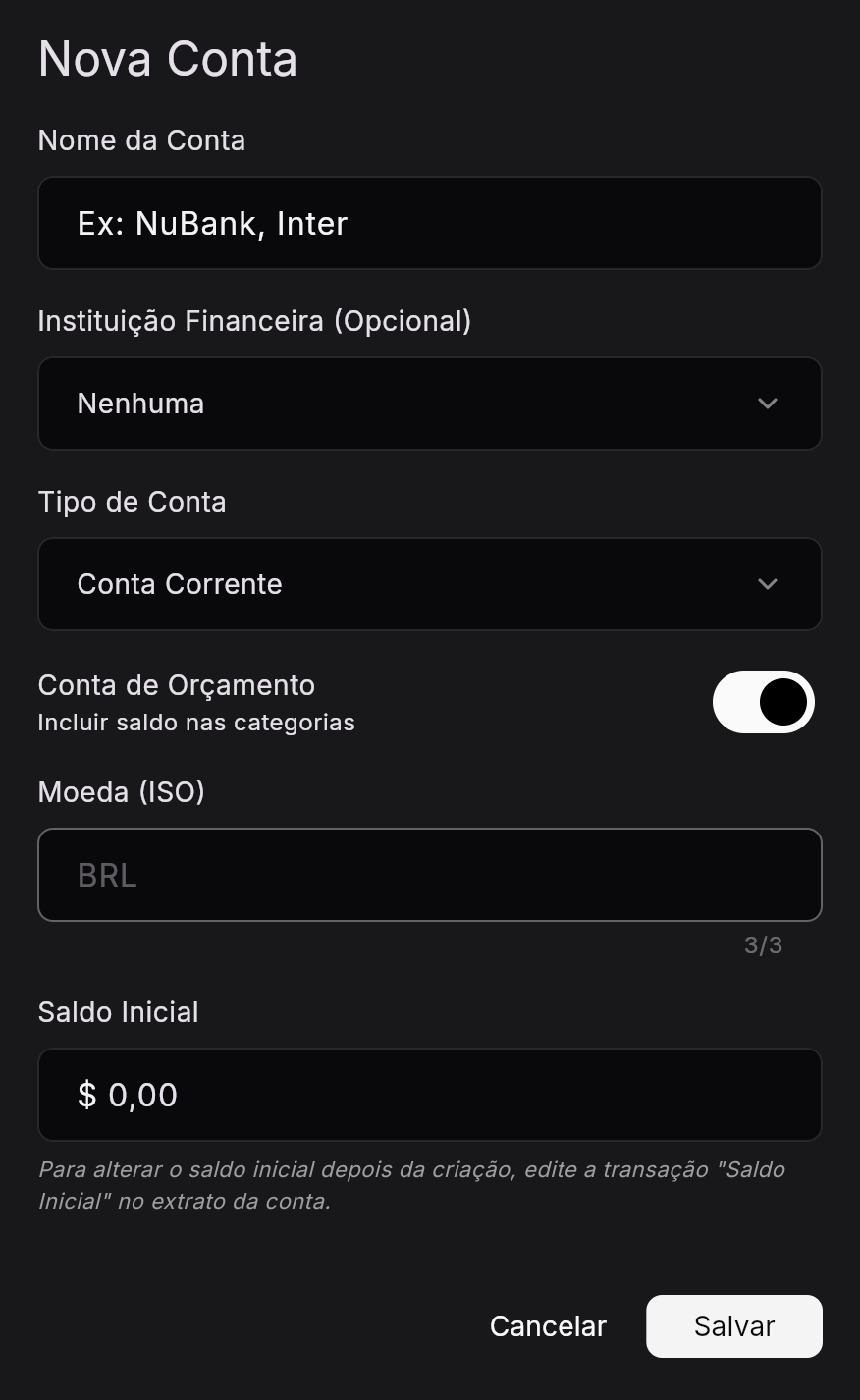
Start by adding all the money you have right now: checking account, wallet, savings account, and so on.
- Open the Accounts tab.
- Click Add Account.
- Choose the financial institution (your bank or brokerage), the account type (checking, savings, investment, etc.), and whether the account belongs to the budget.
- For budget accounts, only the budget's default currency can be used. For off-budget accounts, you can choose other currencies. Add the exact opening balance of each account using the correct currency.
- Enter the account opening balance. Equalize will automatically create an initial transaction to start the account with the current value.
All the money you declared in "budget" accounts will be available to allocate across categories. "Off-budget" accounts do not enter the budget calculation, but they are important so you can keep a complete view of your finances.
What about transaction history? Should I import it?
Equalize can import bank transactions from OFX files. However, we do not recommend focusing on the past, because it is already gone. That does not mean it cannot be useful, but it will probably create a lot of work and have a smaller impact on your financial future. Equalize is focused on the present and the future.
The idea behind Equalize is to help you reflect on where you plan to spend your money, not where you spent it in the past. Then you follow your plan and adjust as needed, checking whether you are spending more or less than planned in each category. That is what changes your financial future.
3. Fill in the Budget
In the Budget menu, fill each category group with expenses that make sense for your reality. If you selected a predefined list while creating the budget, the categories will already be there. You can create new ones or archive categories that no longer make sense for you.
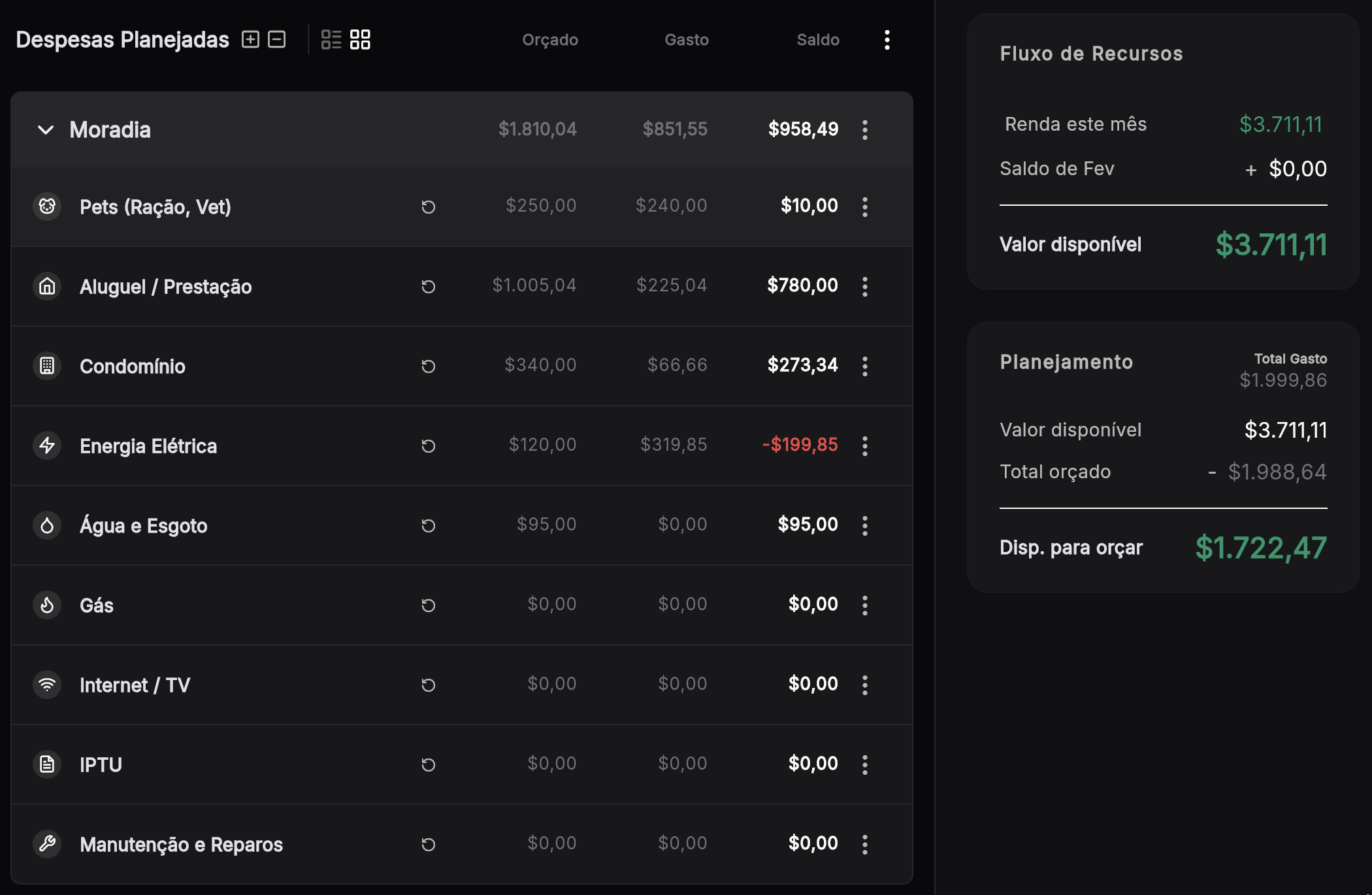
Click the category name to edit the amount you plan to spend there. You can add new categories by opening the menu and selecting + New Category at the top of the category list.
Why can't I delete a category?
Once a category exists in your budget, it receives transactions over time. Deleting a category would mean those transactions no longer have a category group, which is not allowed. However, you can archive categories that no longer make sense for you, which makes them invisible in your budget. Transactions will keep pointing to that category, but it will no longer appear in your current budget view.